| Overview Purchase Order e-signatures allow you to send POs to suppliers for approval and capture signatures digitally—all within the platform. This feature helps streamline approvals, reduce delays, and keep a clear record of every signed purchase order. *This feature is only accessible by Admin users. *This is only accessible on the web version of QuoteToMe. |
PO Signature Settings
To enable or manage PO e-signatures:
- Go to Company Settings from the left-hand menu
- Scroll to the PO Signatures section
- Toggle Require PO Signatures on
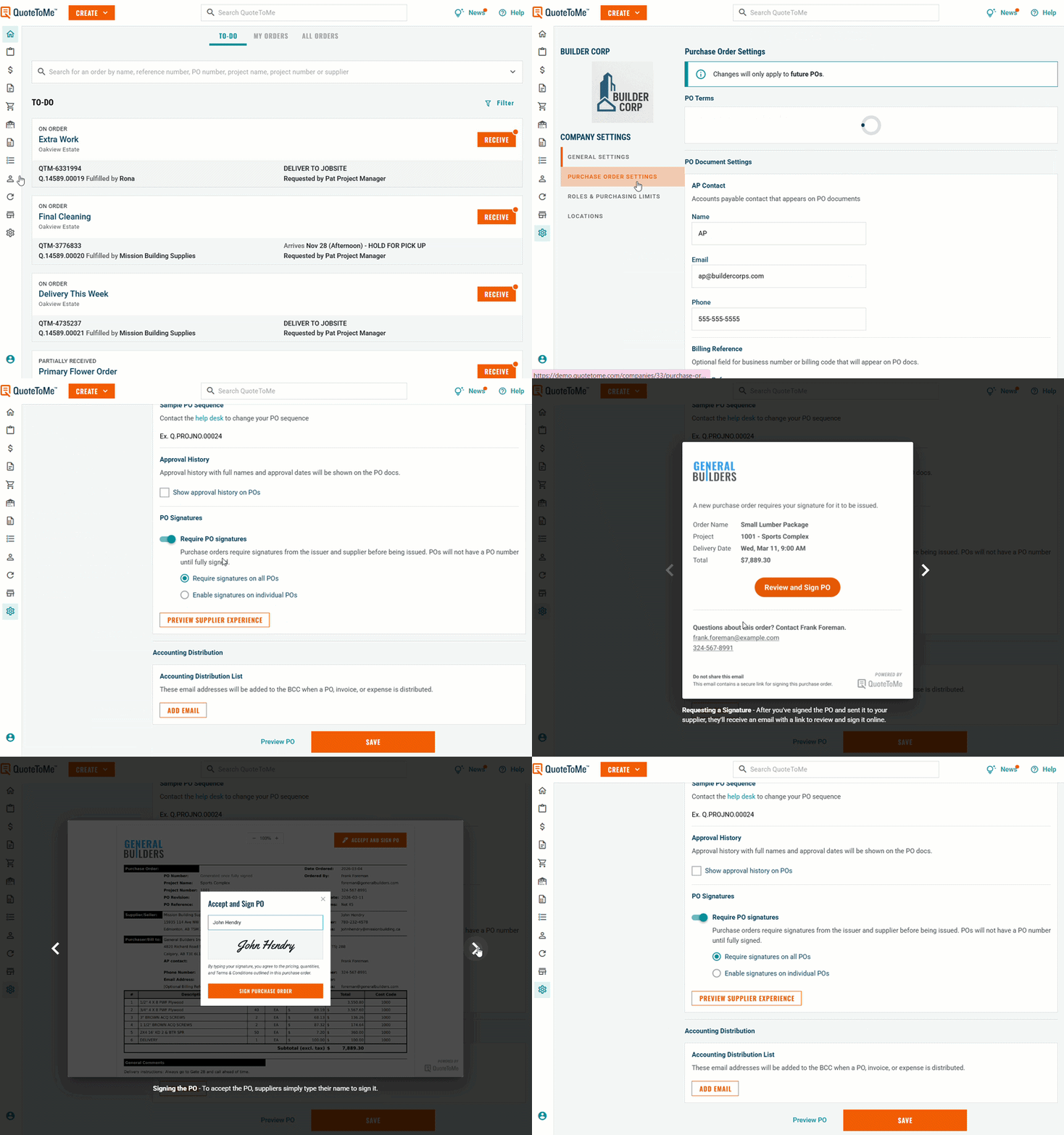
PO Signature Settings
You can control how signatures are required on your Purchase Orders.
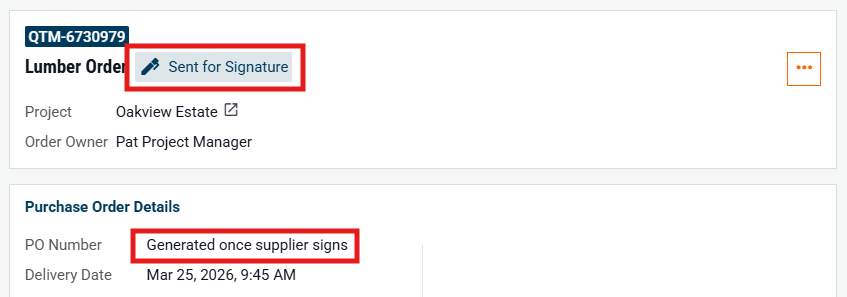
- When Require PO Signatures is enabled, POs must be signed by both the issuer and supplier before being issued. A PO number will only be generated once fully signed.
Available Options:
• Require signatures on all POs
All purchase orders will require signatures before being issued.
• Enable signatures on individual POs
Choose which purchase orders require signatures on a case-by-case basis.
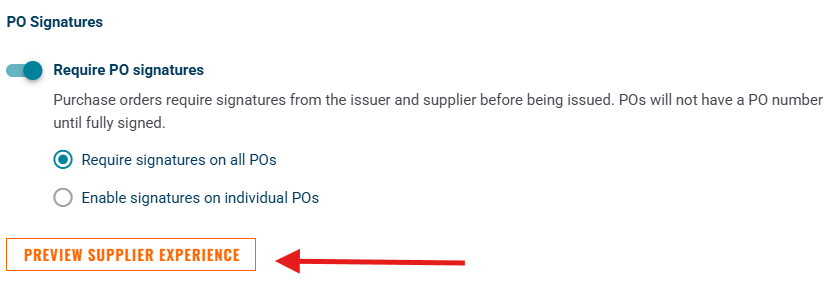
Preview Supplier Experience
You can preview exactly what your supplier will see by selecting “Preview Supplier Experience.”:
How It Works
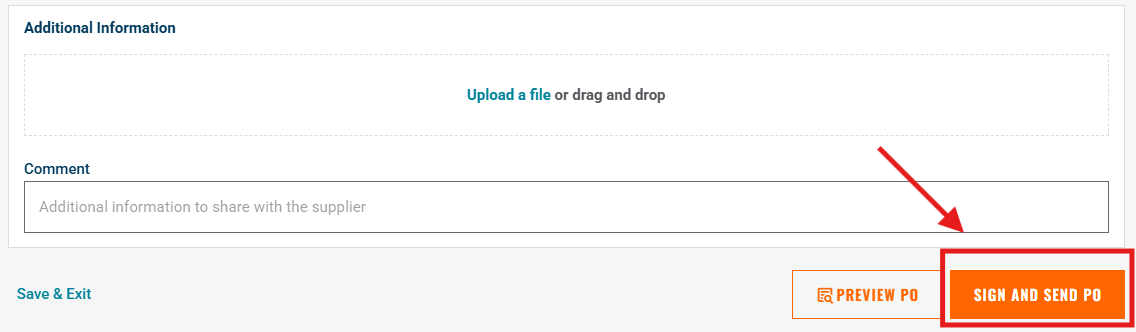
- Create and Sign the PO
- Create a Purchase Order and click “Sign and Send PO.”
- Add Your E-Signature
- Type your name to generate your e-signature.
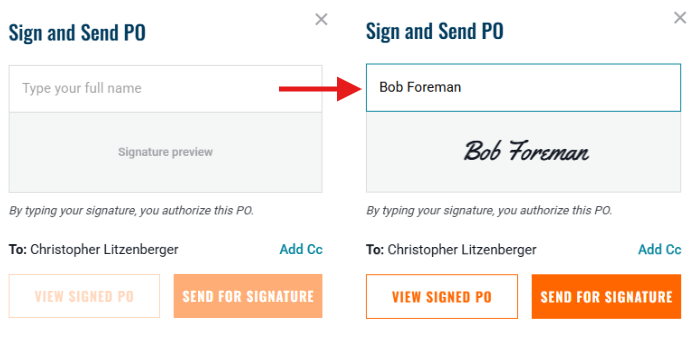
- Click “Send for Signature” to send the PO to the supplier for approval.
After Signing:
• The PO is finalized
• A PO number is generated
• A PDF copy is emailed to the supplier and recipients
• The signed PO is stored for future reference

Need help?
Reach out to our Customer Support team:
- Call us toll-free at 1-833-712-5021
- Chat with us in our web and mobile apps