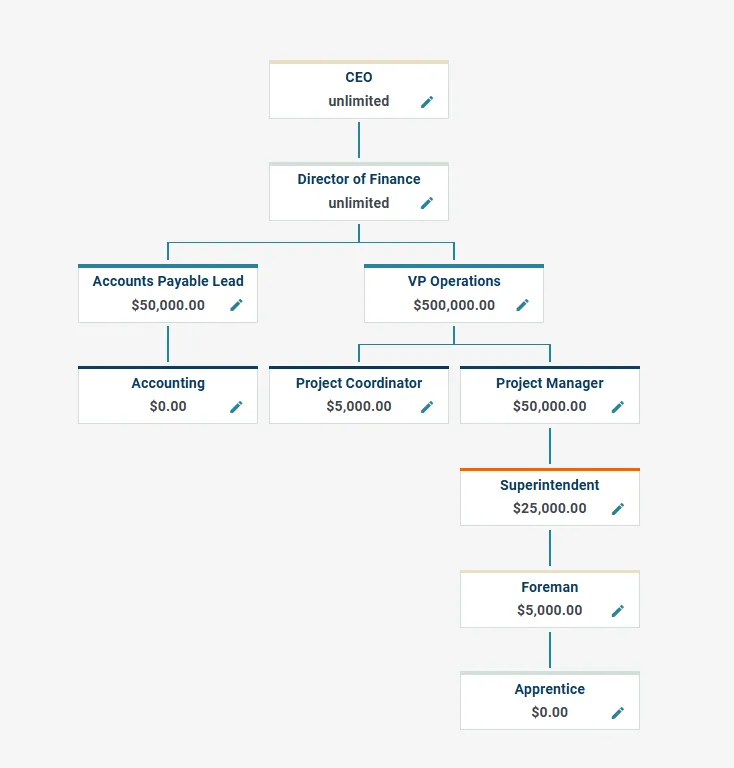
| Overview of Roles & Purchasing Limits Roles & Purchasing limits are set up in QuoteToMe as a tree, in which each role “reports to” a role with a higher purchasing amount. |
Purchase Approval Routing
⚠️Note: Anyone on the project can approve a PO as long as the PO total is within their purchasing limit.
|
In the sample image below, you can see a clear hierarchy for purchasing approvals: the PO creator (Foreman for example) reports to the next higher approver (Superintendent), from there to the Project Manager, and so on from there if the PO amount is high enough. Each role has a higher purchasing limit than the last. Approvals will go through each level for approval until the approver with a high enough limit can issue the PO to the supplier.
How To Create & Edit Purchasing Limits
Step 1. Select Company Settings from the left navigation bar.
- This page will display the company organizational chart as seen above for purchasing roles and permissions.
- Note: only administrators have access to these settings.
- Users must be assigned to roles from their User page.
- Project trees will vary based on who is on the project.
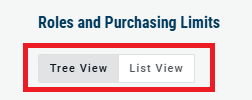
- You can also view the reporting hierarchy as a table by clicking the toggle in the top-right corner:
How To Add A New Role
Step 1. Click Add Role in the top-right corner. 
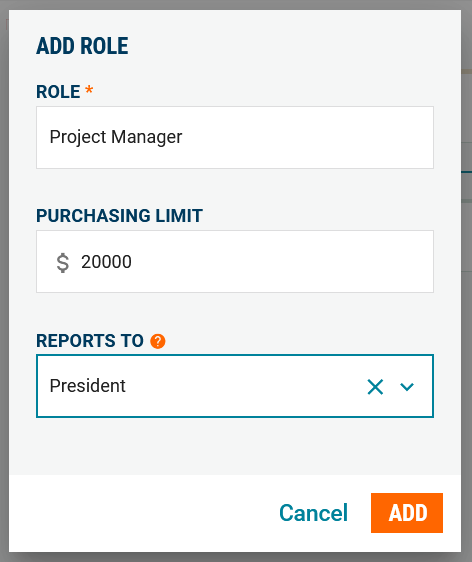
Step 2. Complete the form fields:
- If a role reports to no one, they are at the top of the heirarchy.
- A "$0" purchasing limit will mean any PO that user creates will need to be approved, and they cannot approve anyone else's POs.
Step 3. Click Add.
- The org chart will automatically update with the new role.
How To Edit An Existing Role
Step 1. Click the pencil icon inside the role card.
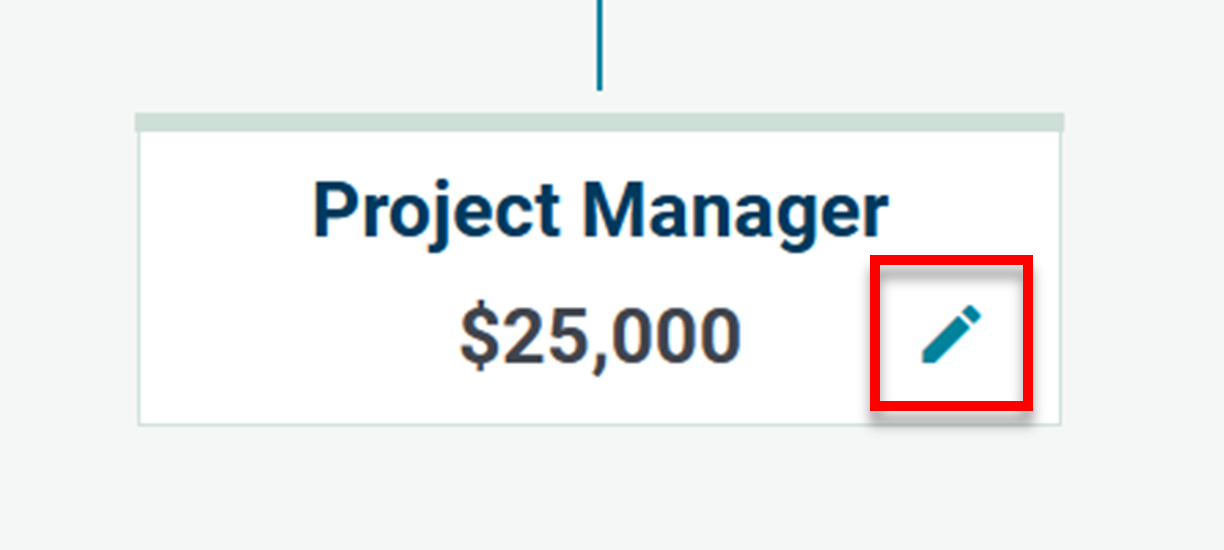
Step 2. Enter your changes:
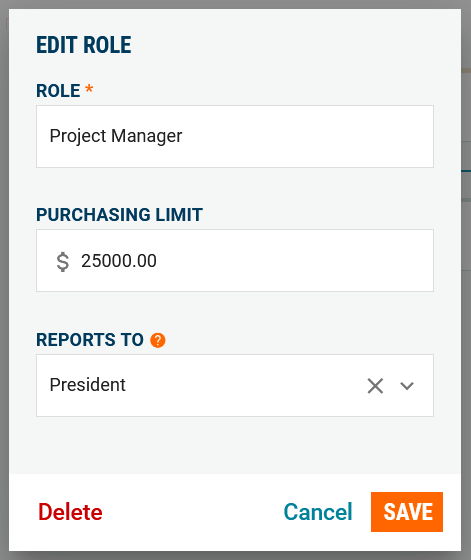
Step 3. Click Save.
How To Delete A Role
Step 1. Click the pencil icon inside the role card.
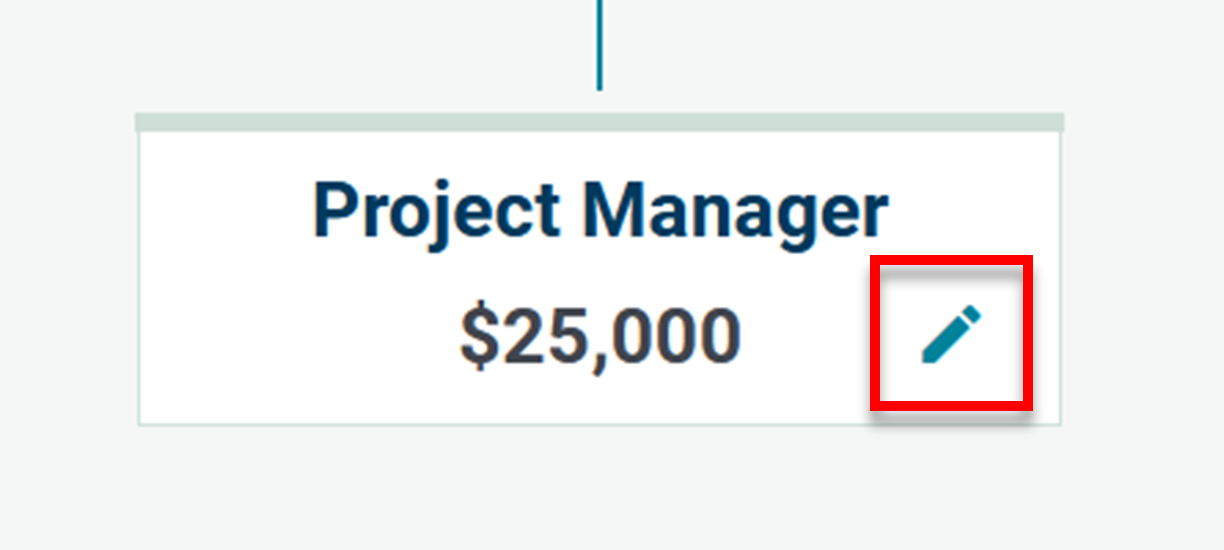
Step 2. Click Delete on the bottom-left corner:
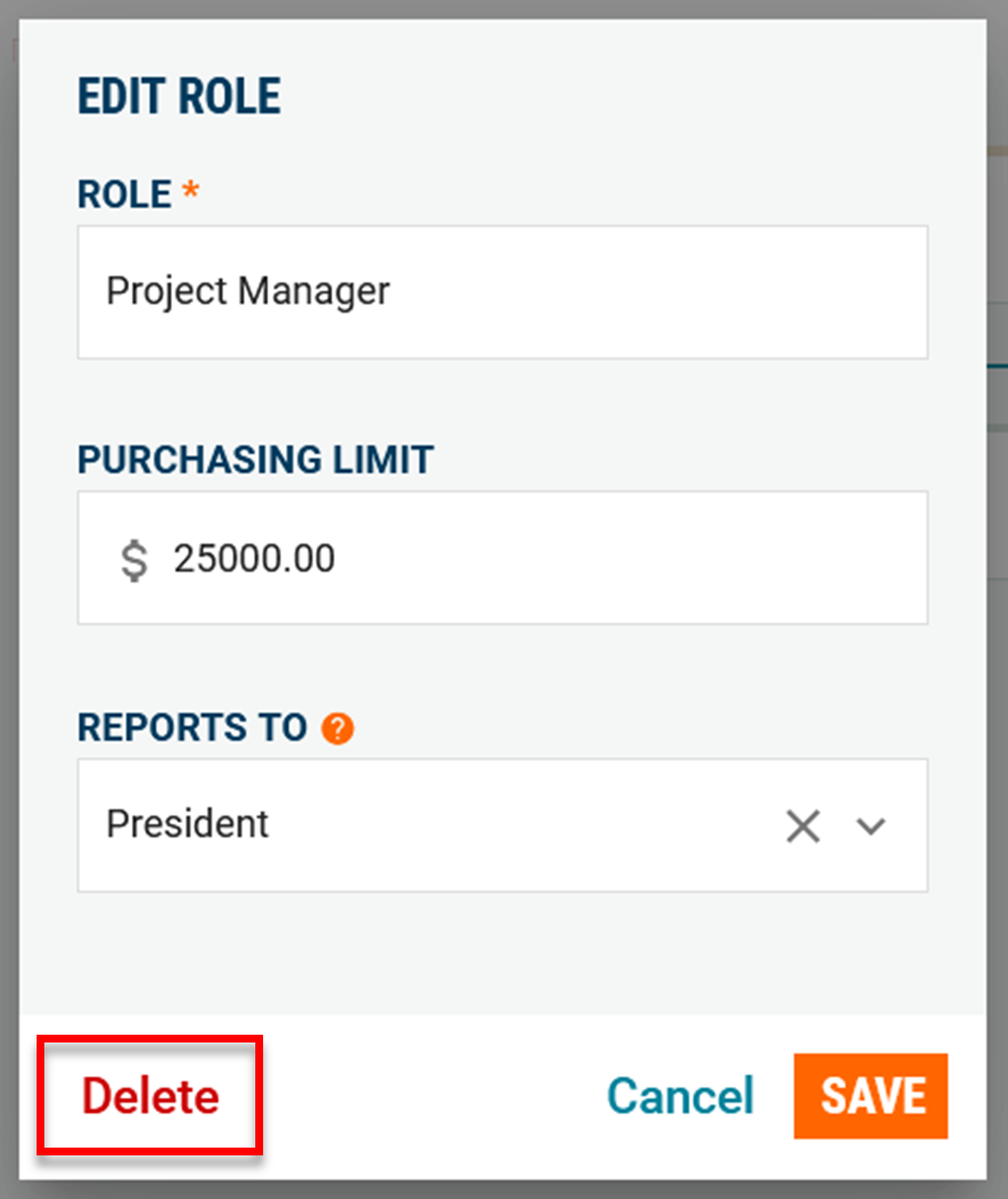
Step 3. Type the job title in the confirmation field:

Step 3. Click Delete.

Need help?
Reach out to our Customer Support team:
- Call us toll-free at 1-833-712-5021
- Chat with us in our web and mobile apps

