OverviewA Change Order allows you to modify an issued Purchase Order to account for necessary adjustments. Key Features of a Change Order:
For handling partially received orders, use the Receive Order function. |
⚠️Note: the Change Order button will not show if the order has a sync issue. Please click on the Accounting Sync red text in the top right to see a description of the issue: If the issue is unclear, please reach out to your administrator or to QTM support for steps to resolve. |

How to Issue a Change Order (Web)
Step 1: Open Your PO
Locate and open the PO you need to modify
Step 2: Create the Change Order
Click the Change Order button:

From here you can:
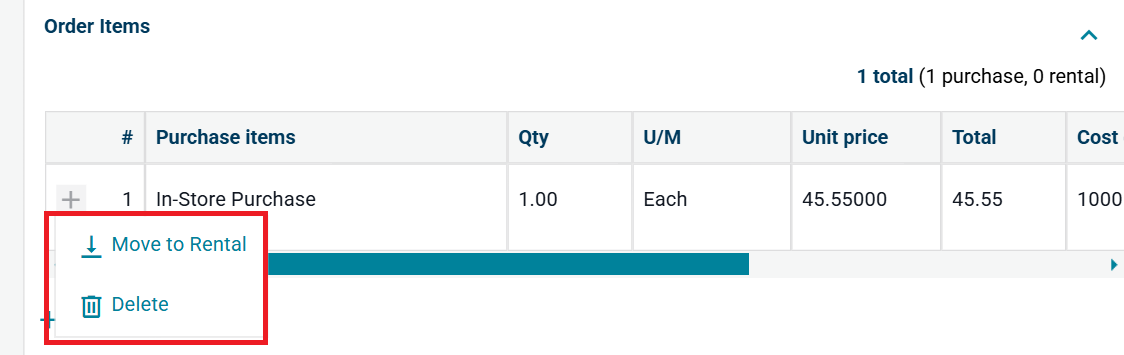
Move items between Purchase and Rental.
Delete items using the trash icon.
Edit line items (all fields are editable).
Add new Purchase or Rental items.
Add Bill of Material items
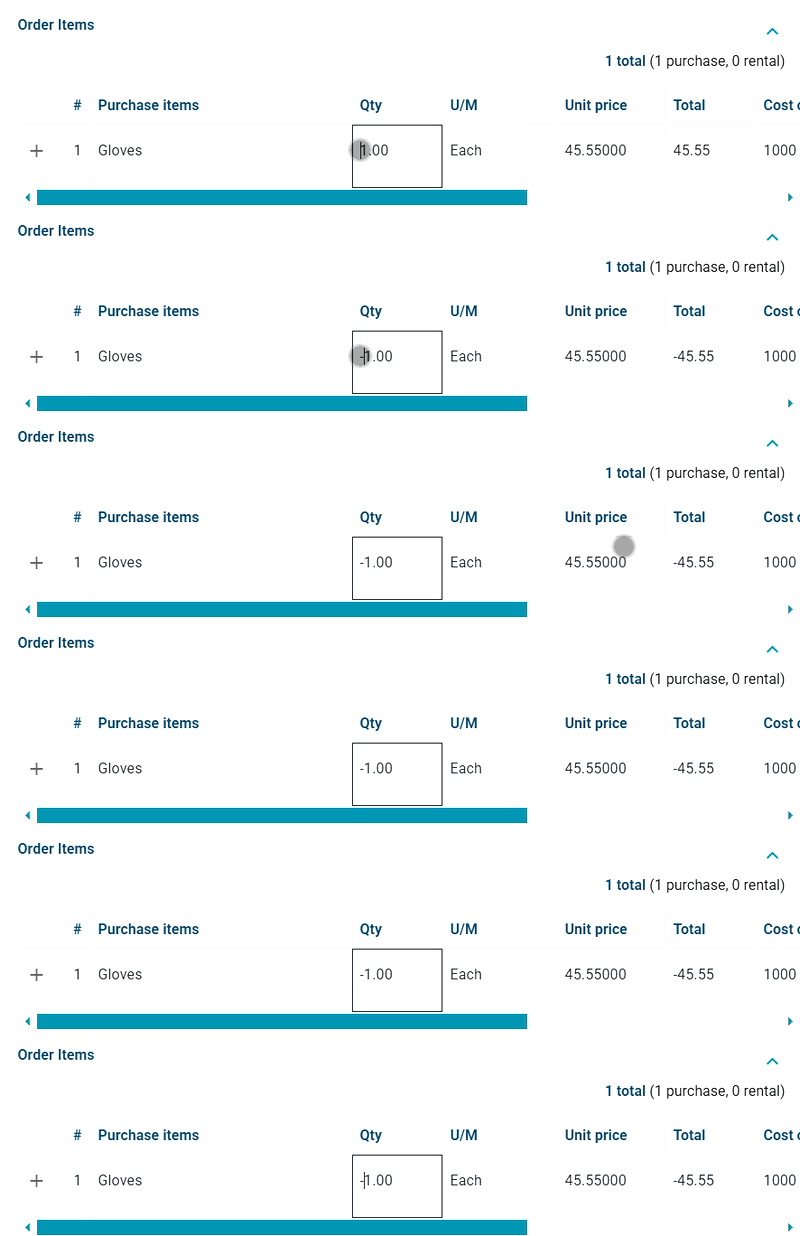
Discount Items (Add a negative sign in front of quantity)
Step 3: Review & Submit
Click Preview PO.
Carefully review all details - this is your last chance to catch errors.
If you need to make changes, click Close to return to editing.
Click Issue Change Order.
- A revised PO will be sent to your accounting team, project team (if subscribed), and the supplier (if selected)
- A revised PO will be sent to your accounting team, project team (if subscribed), and the supplier (if selected)

Need help?
Reach out to our Customer Support team:
- Call us toll-free at 1-833-712-5021
- Chat with us in our web and mobile apps

