OverviewWeb-Only Feature: Cost codes can only be managed through the web version. Key Actions:
|
This document only applies if you are working with a non-integrated project.
- If your project has been imported from an integrated system (Vista Viewpoint, Procore, QuickBooks), you will need to manage cost codes in that system instead.
- Those cost codes will sync to QTM based on how filters are set up.
Adding Cost Codes to a Project
- You can add cost codes when creating a new project or to an existing project.
- This feature can also be accessed when creating a new project, after filling out the form.
Step 1: Select Projects
From the left navigation drawer, select Projects. A list of your projects will appear.

Step 2: Select the Cost Codes Tab
Navigate to the Cost Codes tab within your project.
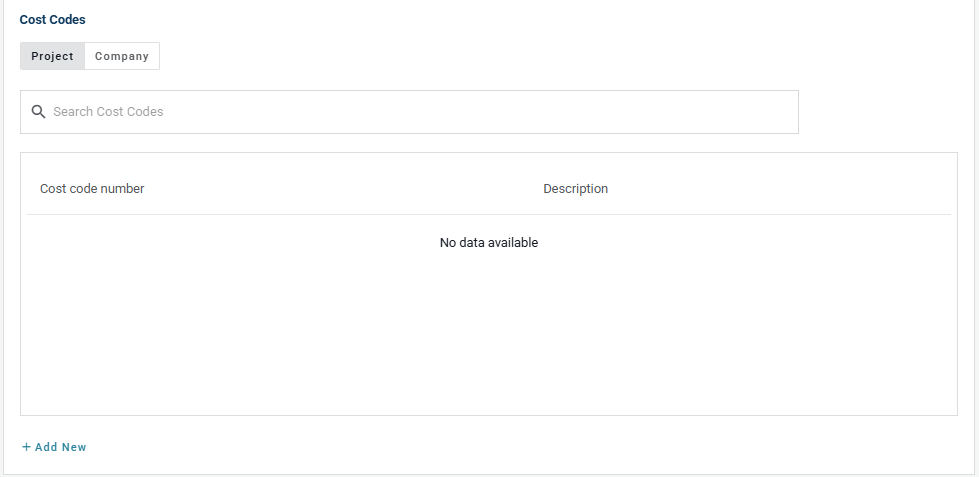
Step 3: Click "Add New"
You have two options for adding cost codes:

Option 1: Enter Cost Codes Individually
Enter the Cost Code and Description.
Click Add Project Cost Code to add each code one at a time.
Option 2: Upload or Drag and Drop a CSV Document
Upload a
.csvfile containing your cost codes and descriptions.The file only needs two columns: Cost Code and Description.
Important: Avoid blank rows as they may cause errors.
Once added, your cost codes are available for selection in the drop-down list when creating a PO.
Editing Cost Codes
Tip: Editing requires deleting and re-adding the cost code.
To Delete Cost Codes:
Click the trash bin icon next to each cost code you want to remove.
To Edit Cost Codes:
Delete the incorrect cost code.
Add it again with the correct information.

Need help?
Reach out to our Customer Support team:
- Call us toll-free at 1-833-712-5021
- Chat with us in our web and mobile apps