OverviewNeed to compare and find the best prices? Send quote requests to your preferred suppliers. After reviewing and awarding a quote, convert it into a purchase order. Before finalizing the PO, you can:
|

How to Use Quote Requests on the mobile app
Step 1: Create a Quote Request
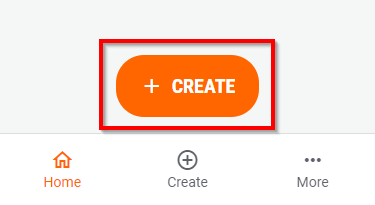
- Tap the Create button at the bottom of the mobile app.
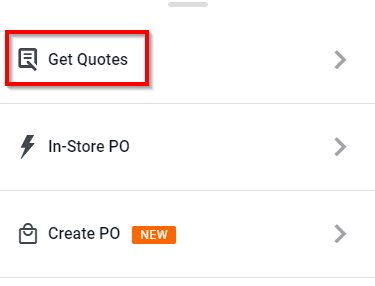
- Select Quote Request.
- Fill out the Order Details form, then tap Continue.
- Tip: Name the order intuitively so it is clear to your project and accounting teams.
Step 2: Enter Project Details & Quote Request Details
Project: Select your project from the drop-down menu.
If you can't find your project, you can join one by searching in the drop-down menu.
Contact your Company Administrator for assistance if the project does not appear
Order Name: Give your order a clear and descriptive name.
- Quotation Due Date:
Set a deadline for suppliers to submit quotes.
Pro Tip: Set a reasonable due date to ensure suppliers have enough time to submit quotes.
What do you need? Enter the items/services required.
Tip: Be as specific as possible so suppliers can provide accurate quotes.
For Rentals:
Enter the date the items are needed.
Specify the rental duration (days, weeks, or months).
Attachments (Optional):
Upload a file to attach supporting documents (e.g., diagrams, spec sheets).
Step 3: Invite Suppliers
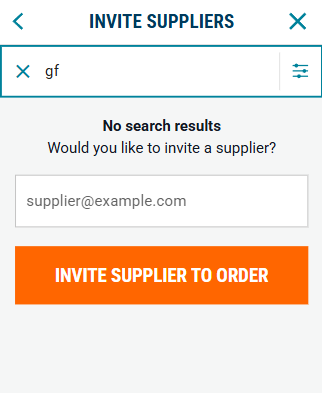
(Optional) Select supplier categories, then tap Next.
Tap to select suppliers from the list, then tap Next.
Having trouble finding a supplier?
|
Step 4: Delivery Details
Fill out delivery details.
Ensure sufficient lead time for the selected delivery date.
Step 5: Review & Send
Review your Quote Request Summary for accuracy.
Tap the edit button on the top-right of each section to make changes.
Tap Send Request for Quotes.
Your suppliers will now receive the Quote request and respond with their pricing.
Suppliers will receive only 2 emails: 1 initial invite to quote, and 1 reminder the day before the due date.
- We will notify you when your quotes are ready, or when the due date for the quotes has arrived.
- Note: the quote request will be returned on the due date set at 3pm local time - with or without quotes.
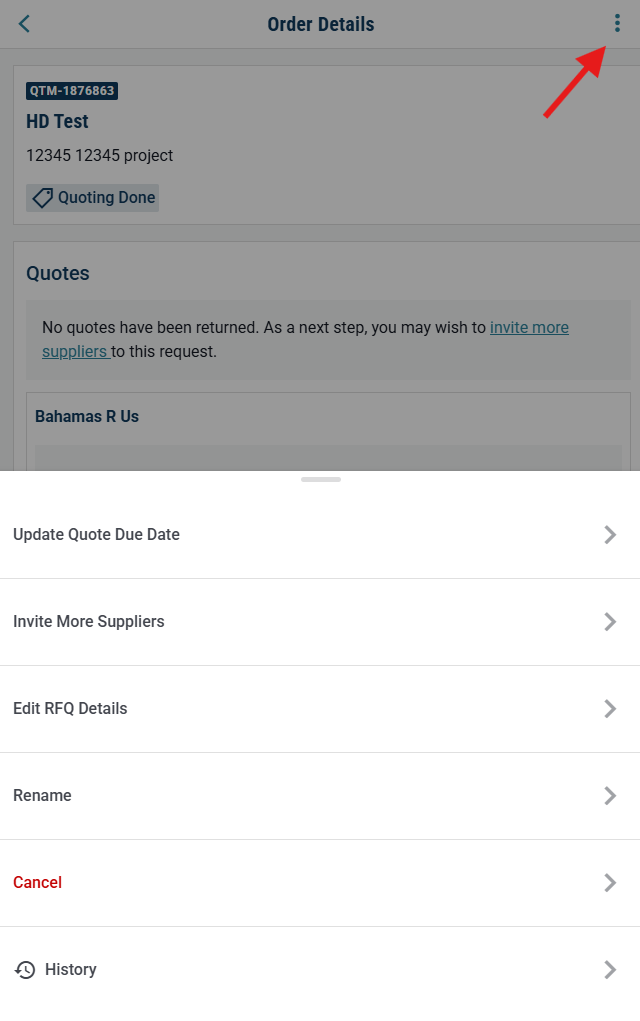
- You will be prompted to update the quote request with more suppliers or extend the due date if no quotes are returned.
- You can update your quote request using the 3-dot menu:
- You can also update the supplier contact after sending a quote request if your contact has changed, is absent, etc.
- Open your quote request
- Tap the supplier card (where the quotes will appear)
- Tap the 3-dot menu, then tap "Change Supplier Contact"
- The quote request will be re-sent to the updated contact.
Tracking Your Quote Requests
To check your order status:
From Home, select More > Orders > My Orders (tab).
Tap your order to view updates.

Need help?
Reach out to our Customer Support team:
- Call us toll-free at 1-833-712-5021
- Chat with us in our web and mobile apps