Overview The supplier has arrived on-site with your order. You check it against the PO to ensure a full delivery of undamaged items. You open your trusty QuoteToMe app and record this by using Receiving.
Receiving supports:
For incomplete receiving:
|
How to use Receiving
On the QTM website, find and open your Purchase Order.
Step 1. Tap the Receive button
- This will open the Receive Order Items page.
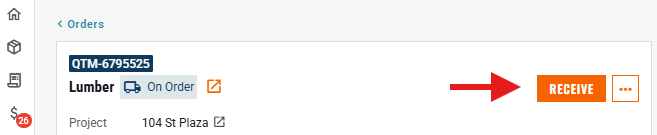
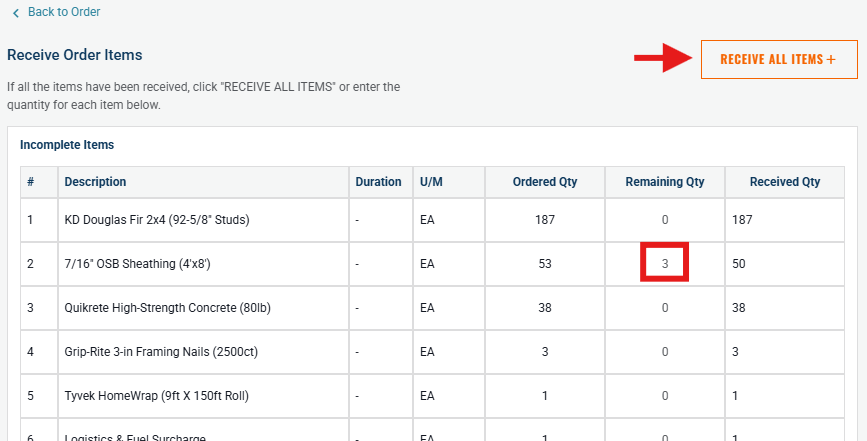
Step 2. Receive Order Items
- If all items have been received, are intact, and are the correct items, click the Receive All Items button.
- If items have been damaged or only partially received, only enter the quantities of the items received for each item and click Receive Order.
- There is a date field that will auto-populate with today's date. This can be changed to when the items were actually received if needed.
- If you need to make notes there is a field to do so at the bottom of the page.
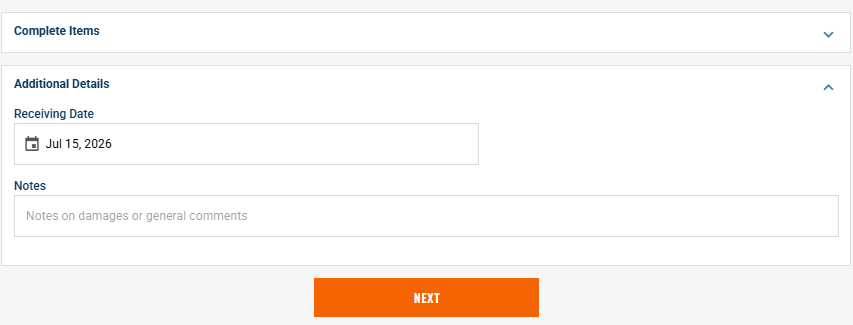
Step 3. Click Next
- This opens the Packing Slips page.
- Use Upload a file or drag and drop to upload documents that support your order, e.g. packing slips, bills of lading, photos, reports, etc.
- Note: this step is skippable. If required by your company policy, take a picture or upload a document to include with your PO documentation.
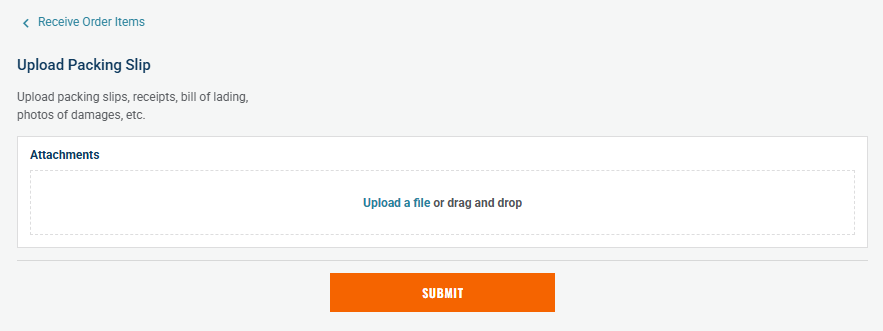
Step 4. Click Submit.
- The status will change to Partially-Received or Complete as appropriate.
To un-receive items: you can enter a negative quantity - use this if something was mistakenly received or a wrong quantity was entered.
- A return for refund should be done with a change order instead.
Related articles
Need help?
Reach out to our Customer Support team:
- Call us toll-free at 1-833-712-5021
- Chat with us in our web and mobile apps

