OverviewA Change Order allows you to modify an issued Purchase Order to account for necessary adjustments. Key Features of a Change Order:
For handling partially received orders, use the Receive Order (Mobile / Web app) function. |
⚠️Note: the Change Order button will not show if the order has a sync issue. Please click on the Accounting Sync text on QTM web to see a description of the issue: If the issue is unclear, please reach out to your administrator or to QTM support for steps to resolve. |

How to Issue a Change Order (Mobile App)
Step 1. Locate your order on the Orders page & tap to open it.
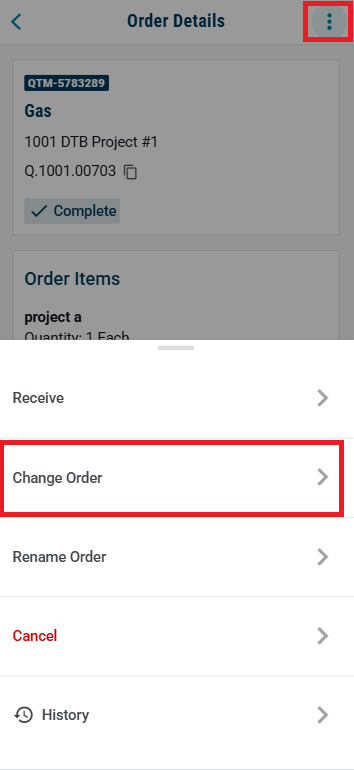
Step 2. Create the Change Order
- Tap the (...) menu to access the Change Order feature
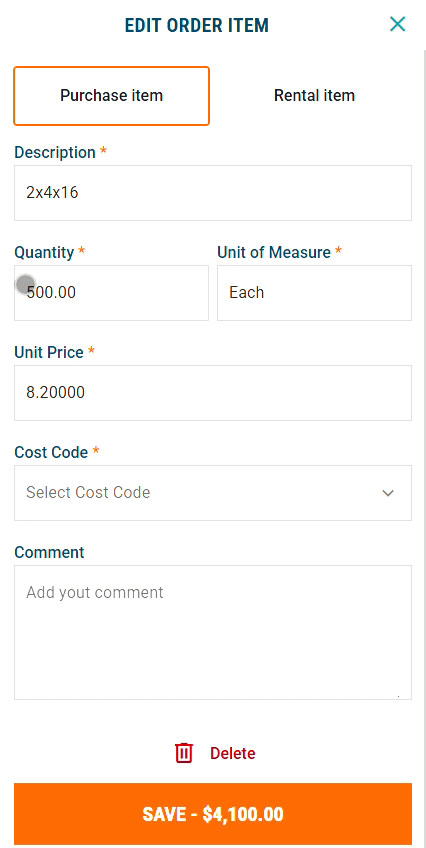
Step 2: On the Creating Change Order page, make necessary changes:
- Add new line items
- Edit line items
- Delete line items
- Discount line items (Add a negative sign in front of quantity)
Step 3. Review & Submit
Carefully review all item details - this is your last chance to correct errors.
Tap Issue Change Order
A revised PO will be sent to your accounting team, project team (if subscribed), and the supplier (if selected).

Need help?
Reach out to our Customer Support team:
- Call us toll-free at 1-833-712-5021
- Chat with us in our web and mobile apps

