
This article will guide you through installing our QuoteToMe app integration within Procore. |

How To Install the QuoteToMe App in Procore
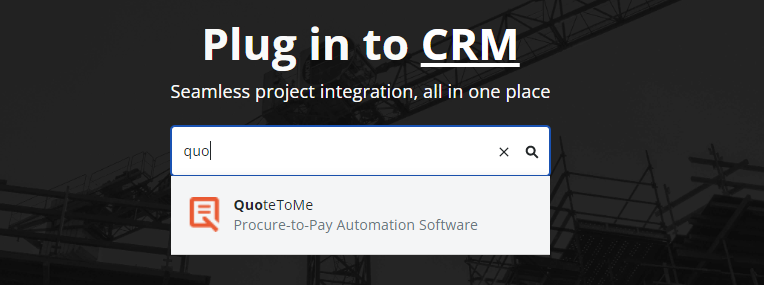
- In the Procore App Marketplace, search for and install QuoteToMe.
- Visit: https://marketplace.procore.com
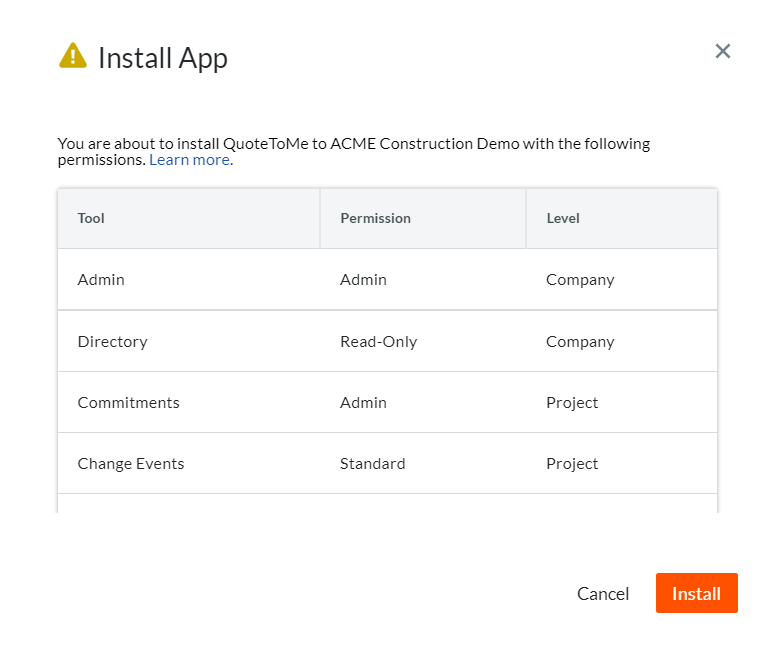
- You will be presented with the Install App dialogue.
- Visit: https://marketplace.procore.com
- Navigate to your company's Directory page:
Top menu > Company Tools > Directory
- Locate the "quotetome" user and click Edit:

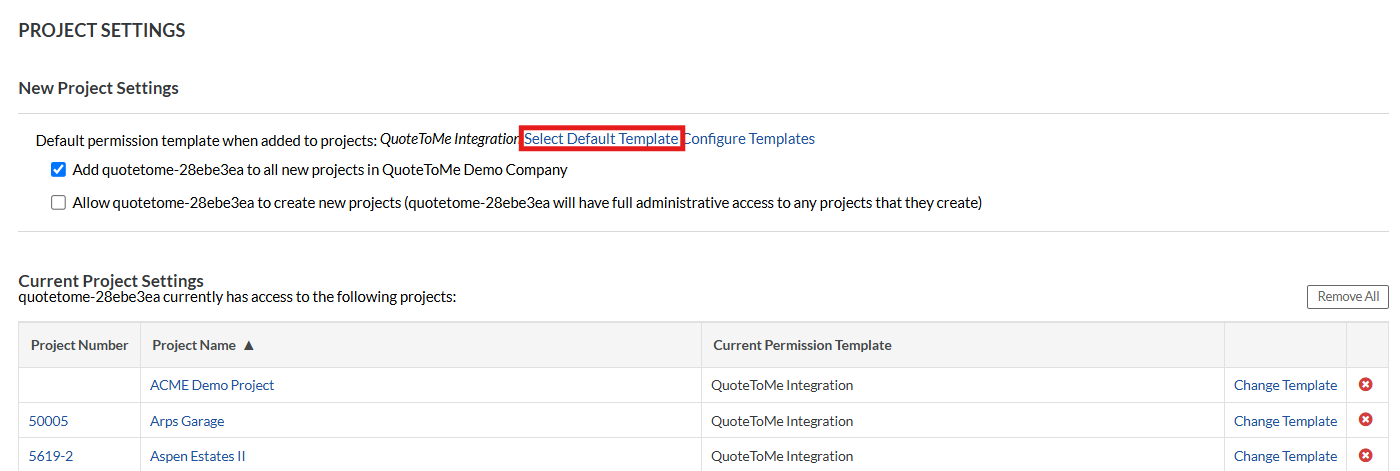
Note: This account will be named with the format: quotetome-12345abcd (ending with a sequence of letters and/or numbers). - Select Default Template under the New Project Settings header.
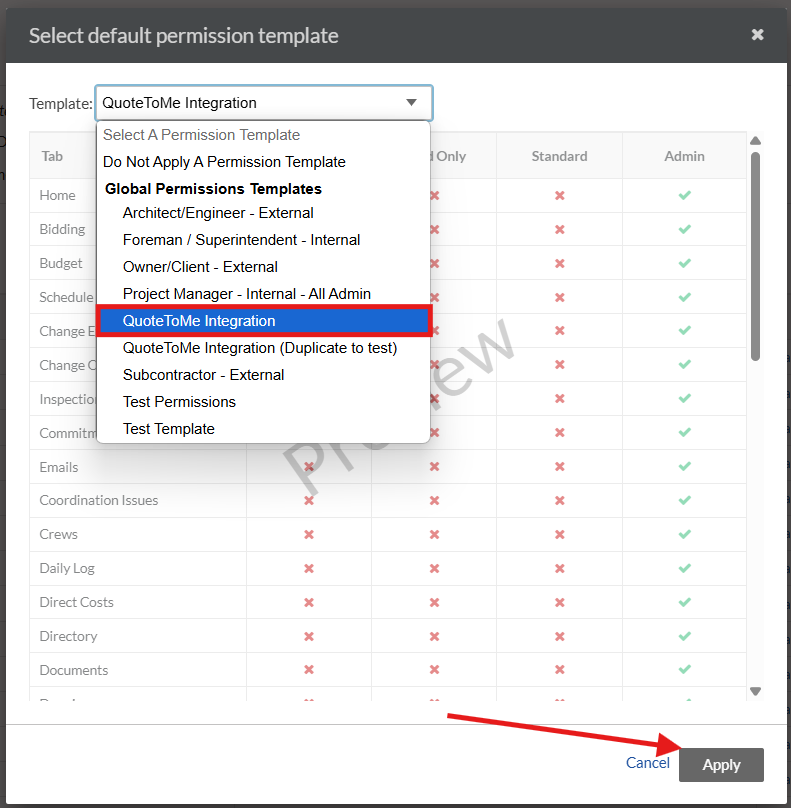
- Select QuoteToMe Integration from the template drop-down menu, Apply.
- Change the Directory to Admin
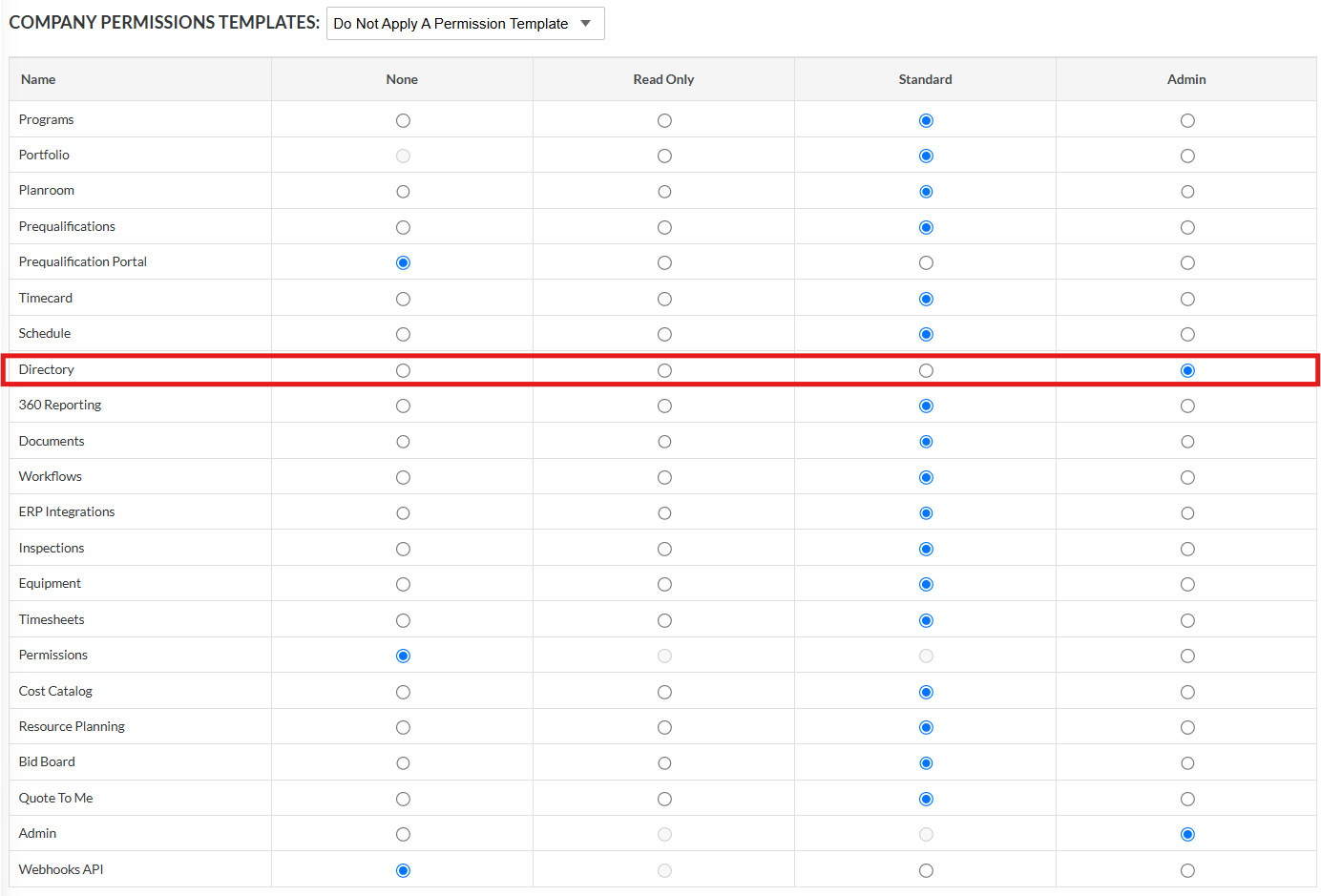
- Select the checkmark Add quotetome-12345 to all new projects in (your company name).

- Change the template to QuoteToMe Integration for all projects that have already been added to the service account before this step:
- Scroll down to the Current Project Settings header, and select Change Template.
This header is near the bottom of the page.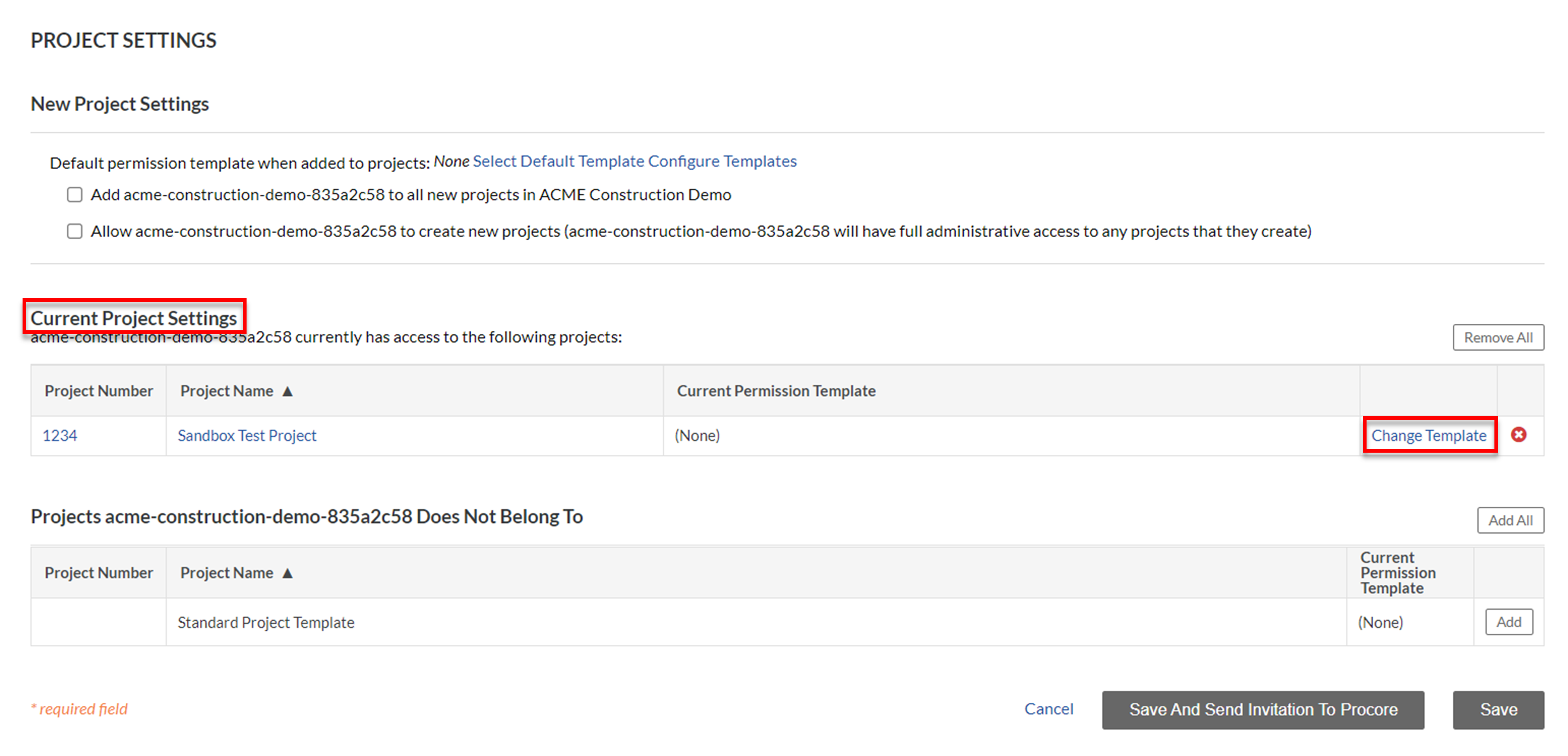
- Select the QuoteToMe Integration project permissions template (which you created already) from the Template drop-down menu.
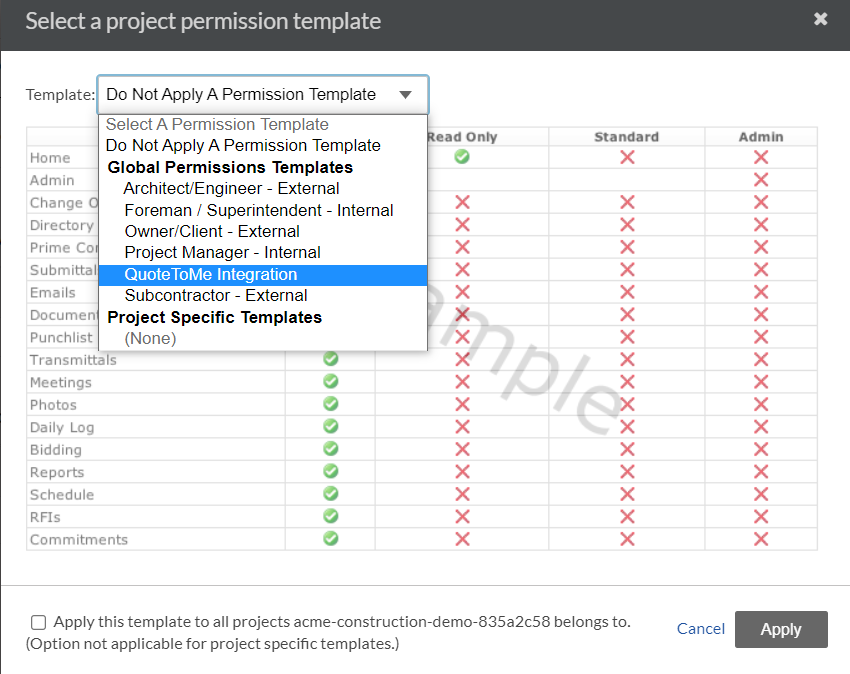
- Click Apply
- Click Save
- Scroll down to the Current Project Settings header, and select Change Template.
Your Procore project and vendor data will begin to sync with QuoteToMe!
- You can follow the steps to import projects to QTM here.

Need help?
Reach out to our Customer Support team:
- Call us toll-free at 1-833-712-5021
- Chat with us in our web and mobile apps
