
If your projects aren’t appearing in QuoteToMe, it’s usually due to one (or both) of these issues:
Below, we’ll walk you through how to check and resolve both. Before beginning make sure Set Up Procore - Step 1: Create a Project Permissions Template has been completed. |
Incorrect Template Assigned
Issue: The project doesn’t have the correct template assigned, which is needed for syncing with QTM.
Solution:
1. In Procore, go to Company Directory → Users and locate the QuoteToMe service account user (e.g., quotetome-1234567).

2. Click Edit, then scroll to Current Project Settings.
 3. Check that the assigned template is QuoteToMe Integration.
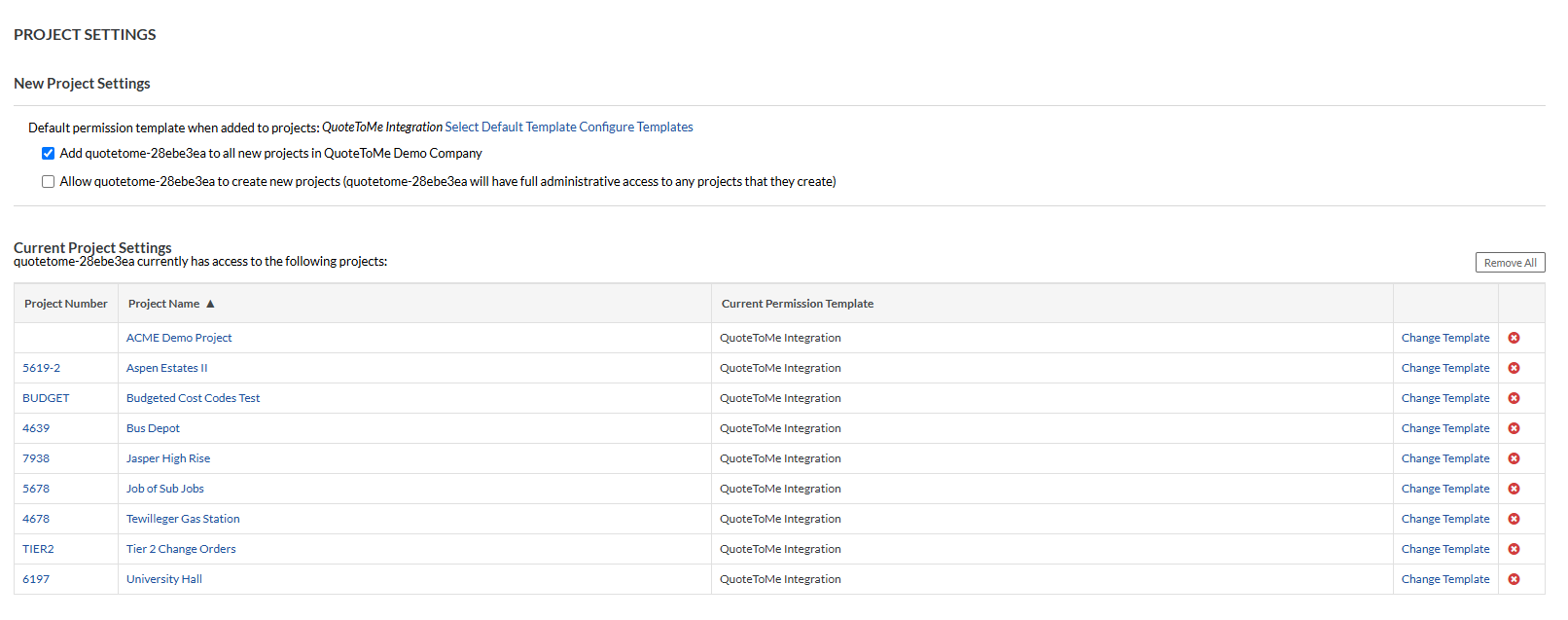
If the wrong template is assigned, update it to QuoteToMe Integration and save your changes.
Integration User Not Added to the Project
Issue: The QuoteToMe integration user is missing from the project, which prevents it from syncing with QTM.
Solution:
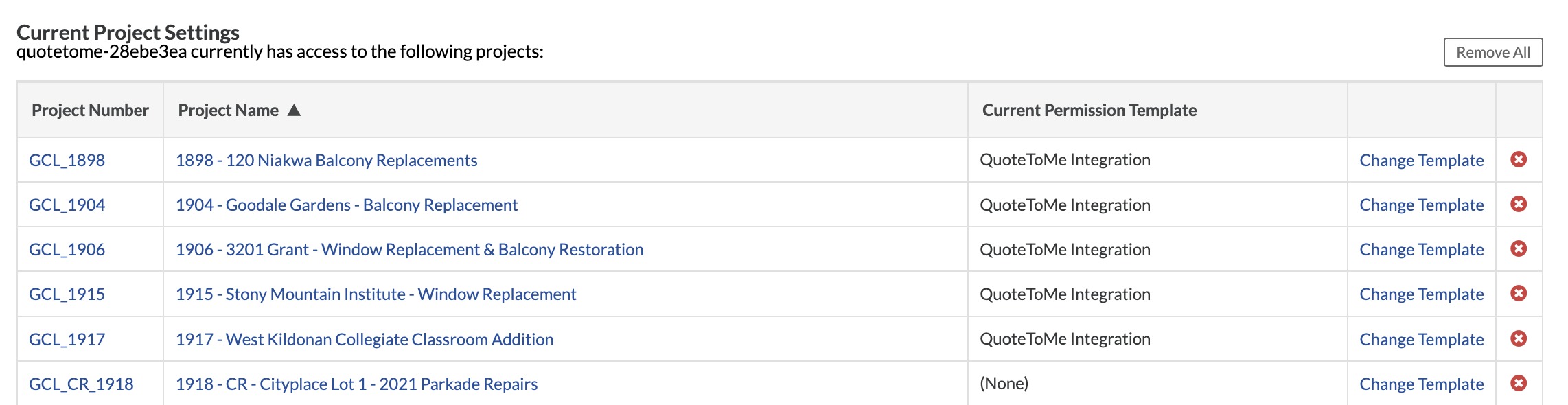
- In Procore, navigate to the Company Directory → Users, find the QuoteToMe service account user (named e.g. quotetome-1234567)
- For the projects listed, change the template to the QuoteToMe app integration:
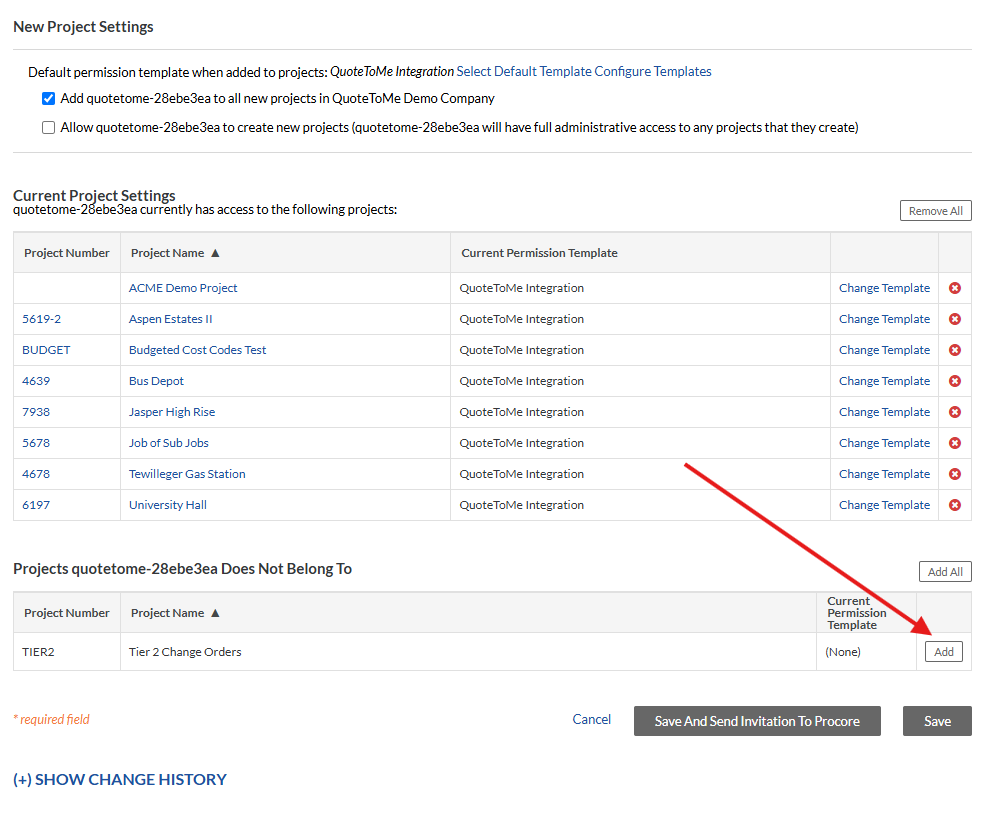
3. To add the QTM User, click add:
Need help?
Reach out to our Customer Support team:
- Call us toll-free at 1-833-712-5021
- Chat with us in our web and mobile apps