| Overview Need a summary of all your PO data? Do so with as much detail as you need by following these steps to export related data from a project in QuoteToMe. |
Generate a PO report
1. Navigate to the Projects Page
- On the left-hand sidebar, click the Projects icon (clipboard icon).
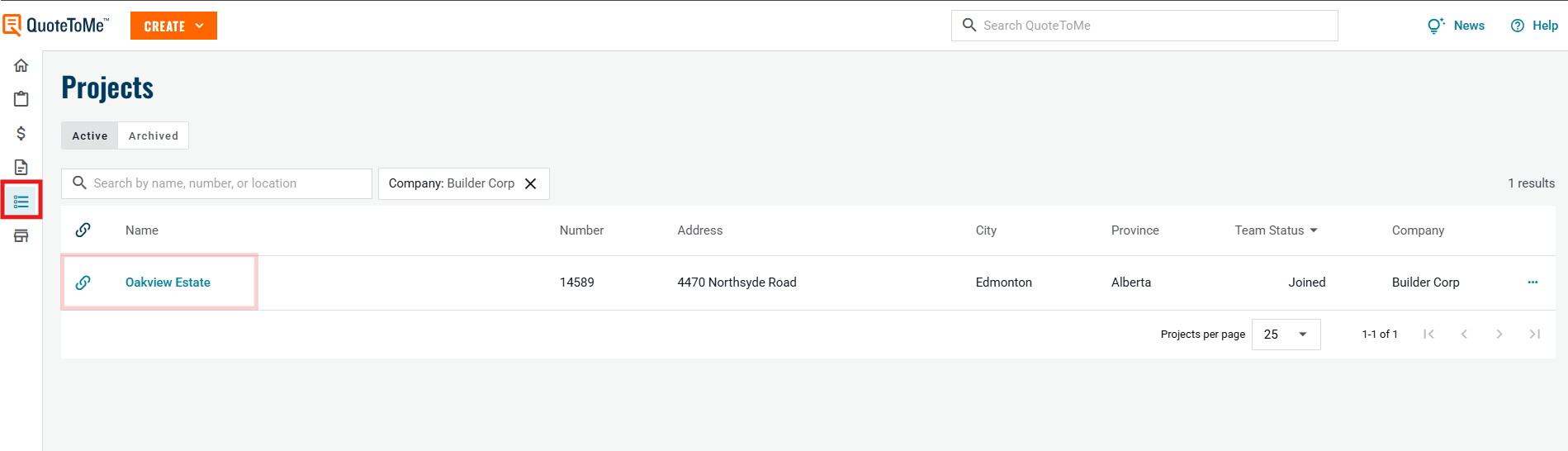
2. Select Your Project
In the Projects list, find and click on the name of the project you wish to export POs from (e.g., Oakview Estate).
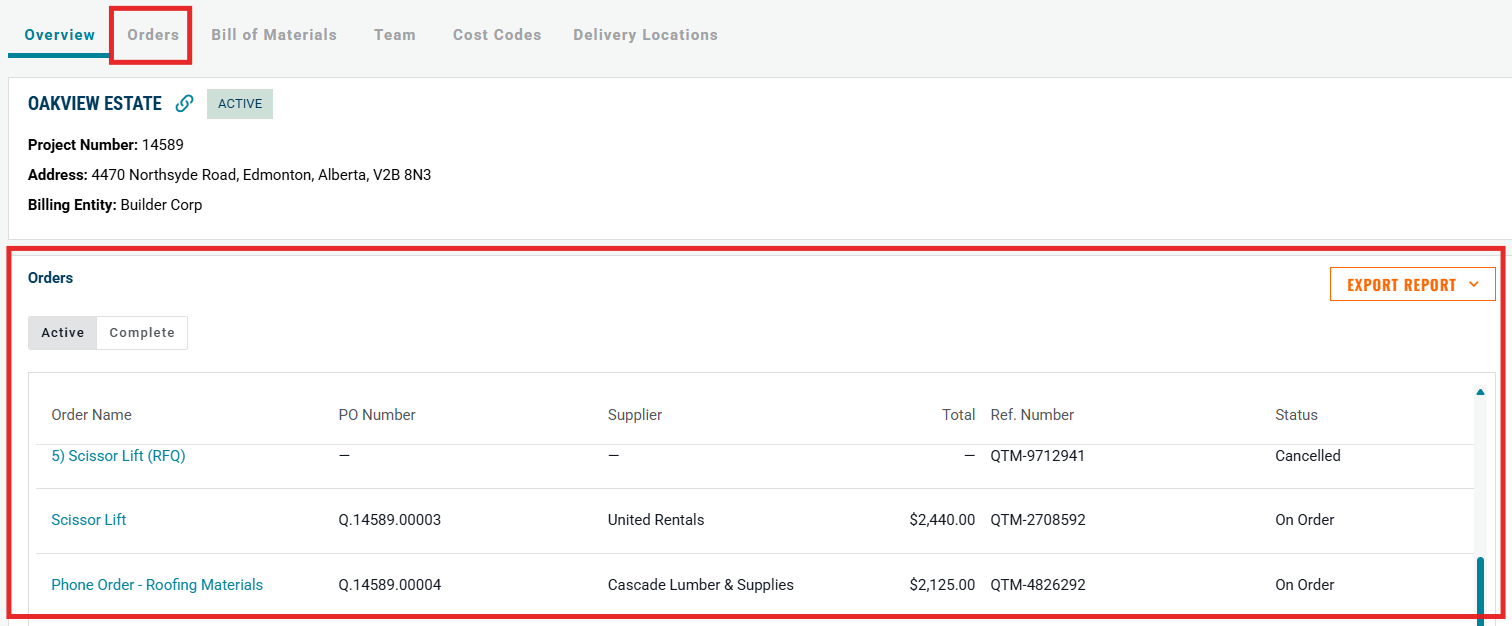
3. Go to the Orders Section
- Once inside the project, scroll or use the tab to navigate to the Orders section.
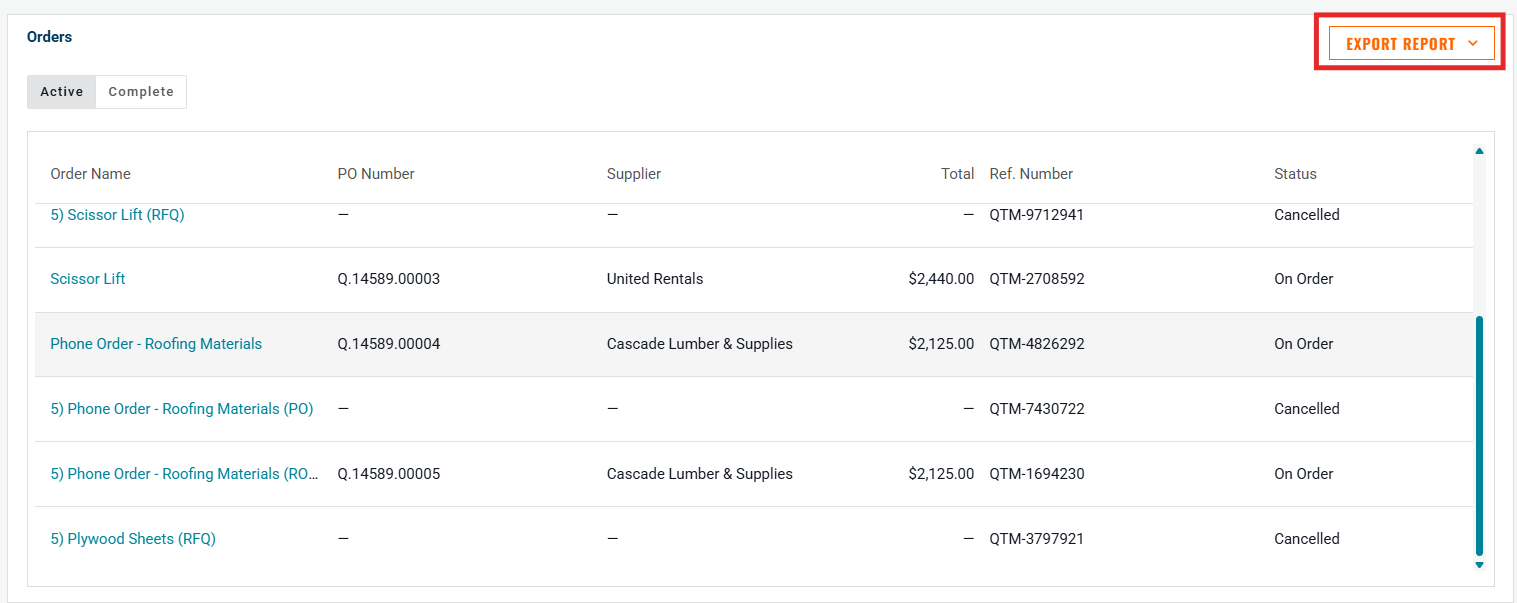
4. Click “Export Report”
- On the right-hand side of the Orders section, click the “Export Report” dropdown button.
5. Choose Export Format
You will see the following options:
PO (.CSV) – Export Purchase Orders in CSV format.
PO (.PDF) – Export Purchase Orders in PDF format.
POItems (.CSV) – Export Purchase Order Items in CSV format.
Quotes (.CSV) – Export Quotes in CSV format.
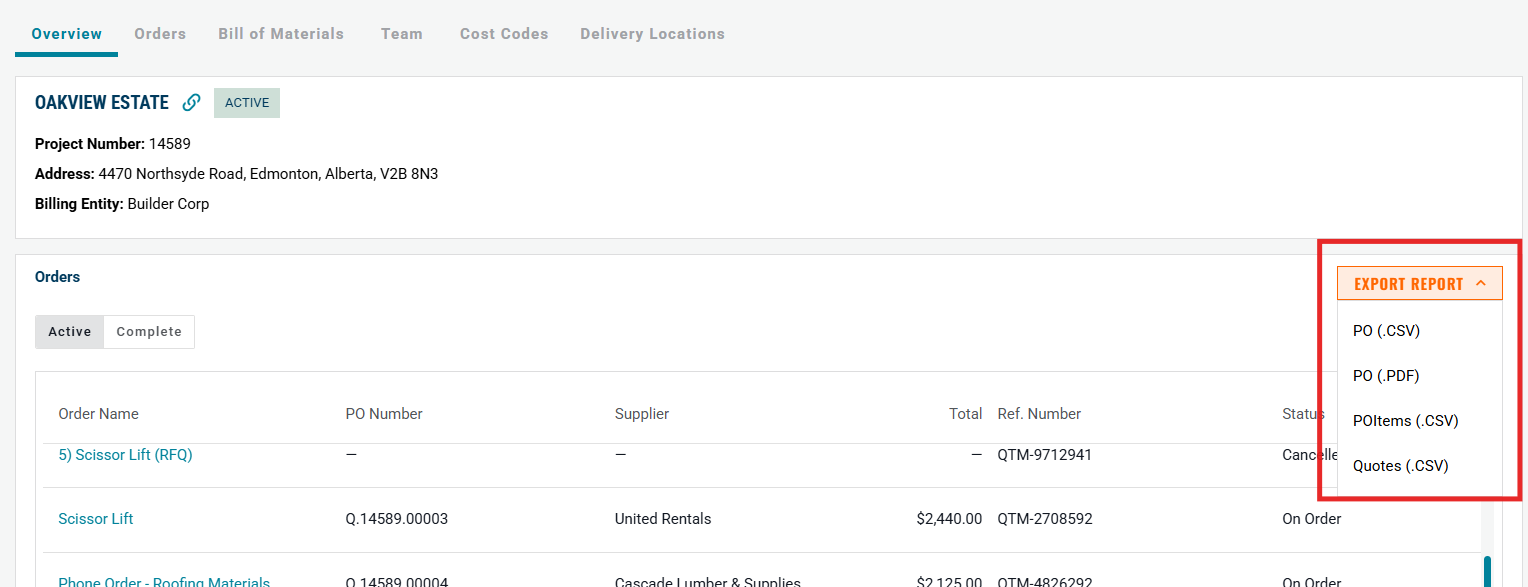
5. Click on your desired format to request the report.
Notes:
- Please only request the report once. It will take some time for the data to compile and multiple requests will only slow it down & create duplicates.
- The report will generate and send to your email when complete.
Need help?
Reach out to our Customer Support team:
- Call us toll-free at 1-833-712-5021
- Chat with us in our web and mobile apps