How to Check if You're on the Latest Version of QuoteToMe
Keeping QuoteToMe up to date ensures you have the latest features, bug fixes, and security improvements. Here's how to check your version on each platform.
Web Browser
The web version of QuoteToMe updates automatically — you're always on the latest version as long as you're connected to the internet. If something looks different from what you expect, try a hard refresh:
Mac: Command + Shift + R
Windows: Ctrl + Shift + R
Mobile App (iOS & Android)
Finding your current version
Your version number appears in two places:
Login screen — look for the version number in the top-right corner of the screen (e.g., 1.65.3).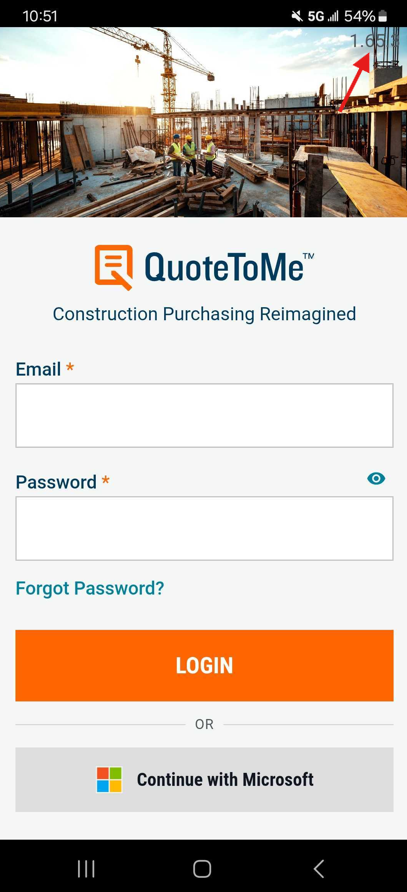
More tab — after logging in, tap More at the bottom of the screen and scroll to the bottom. The version is displayed at the bottom of the page (e.g., QuoteToMe 1.65.3).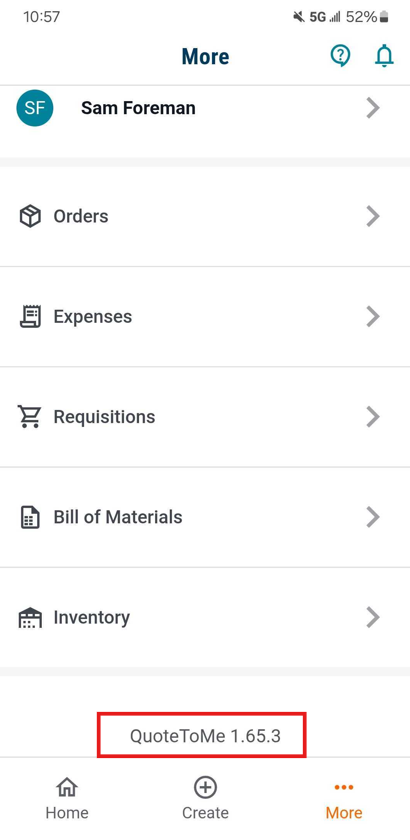
Updating the app
iOS:
Open the App Store and tap your profile icon in the top-right corner.
Scroll down to see pending updates.
If QuoteToMe appears, tap Update.
Android:
Open the Google Play Store and tap your profile icon.
Tap Manage apps & device.
If QuoteToMe appears under "Updates available," tap Update.
Need Help?
Our Customer Support team is here to help.
Phone: 1-833-712-5021 (toll-free)
Chat: Available in our web and mobile apps

