| QuickBooks can be integrated with QuoteToMe to help make it easier to Get Quotes, send Purchase Orders, and enter Expenses & Invoices. All of these will sync from QTM to your QuickBooks instantly. Here are some general navigations tips for using QuickBooks with QuoteToMe. |
Using QuickBooks with QuoteToMe
TABLE OF CONTENTS
Purchase Orders
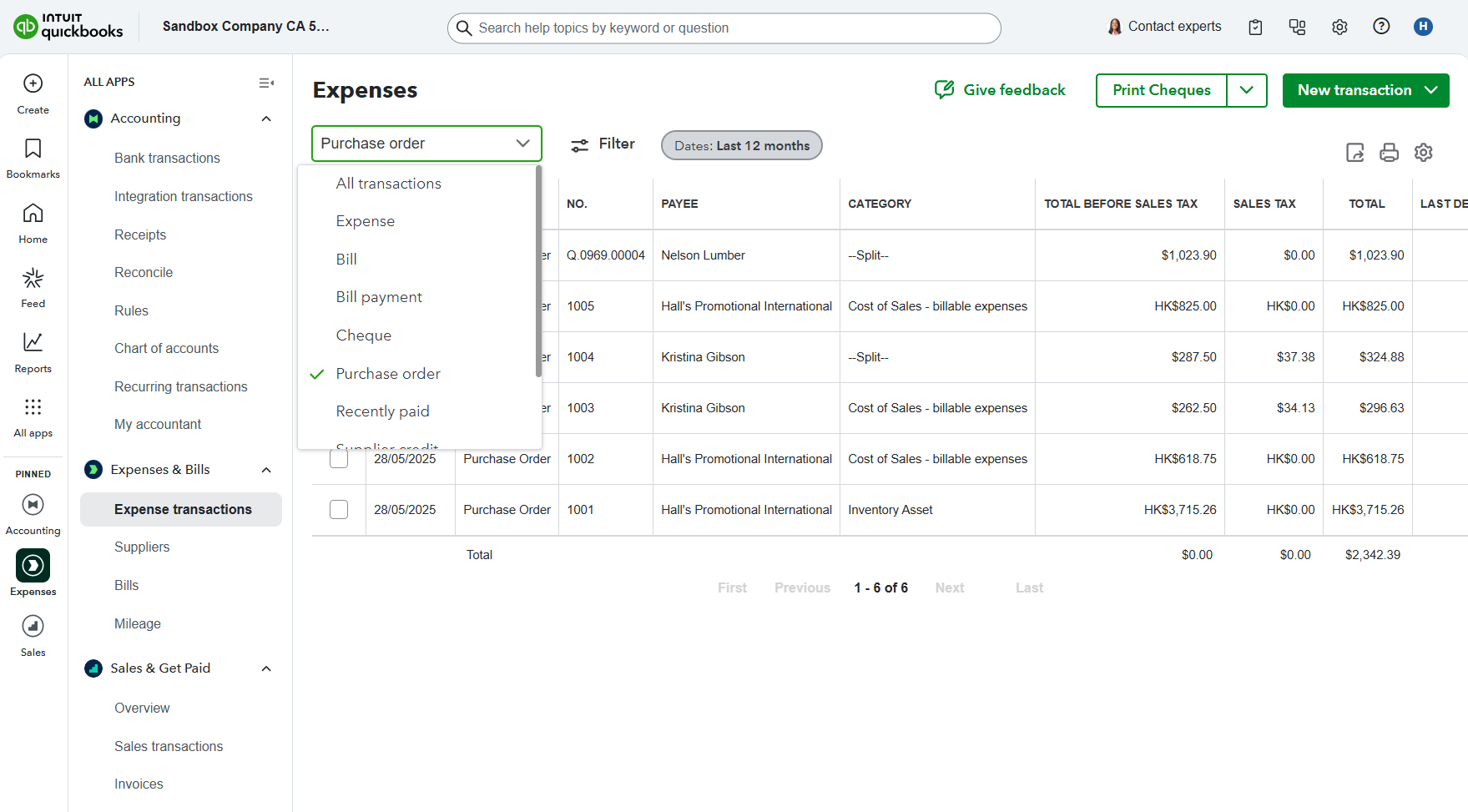
When a PO is issued from QTM, it will appear in QuickBooks under "Expenses & Bills".
- Go to: Expenses & Bills > Expense Transactions > Purchase Order (filter)
Suppliers/Vendors
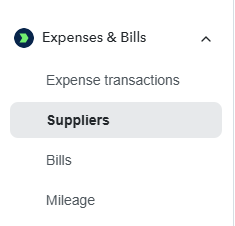
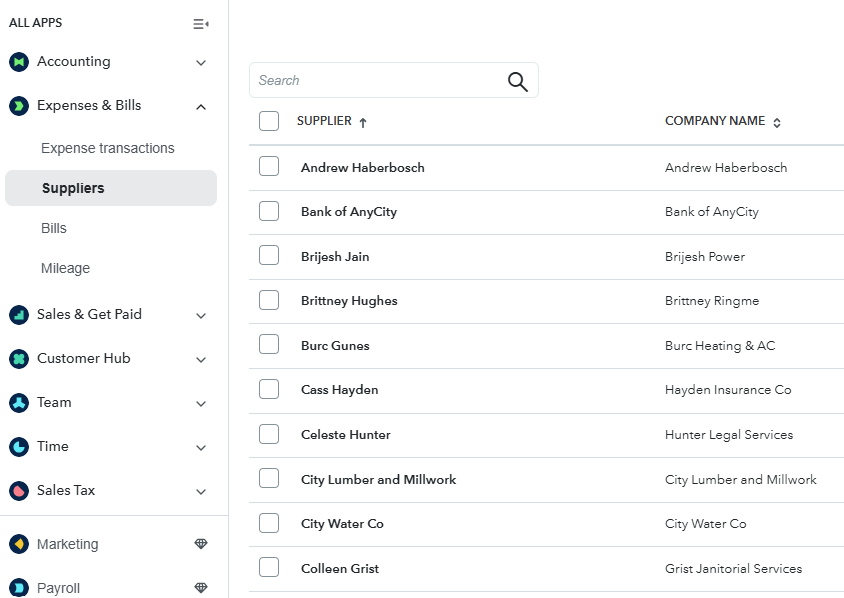
Find suppliers under Expenses & Bills > Suppliers.
- Enter suppliers here to have them appear in QTM.
Cost Codes
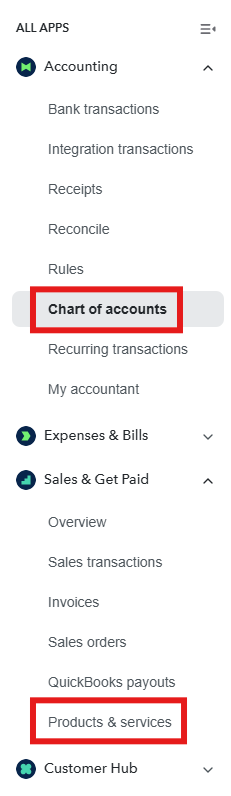
Cost Codes entered in either of the below locations will sync to QTM and will be available to use therein:
- "Chart Of Accounts"
- Located under Accounting > Chart of accounts
- These will sync to QTM if entered under the categories of Expenses or Cost Of Goods Sold.
- "Products & Services"
- Located under Sales & Get Paid > Products & services
Projects
Projects for use in QTM can be created as Projects and/or "Sub-Customers" located within "Customers & leads". QTM will look to both locations to be available to import.
To use Projects:
- All Apps > Projects
- Create a new Project
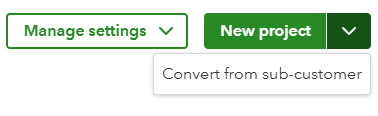
- Note: you can also convert a sub-customer to a project:
To use Sub-Customers:
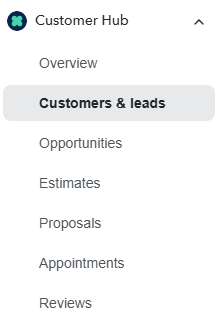
1. Go to Customer Hub > Customers & leads
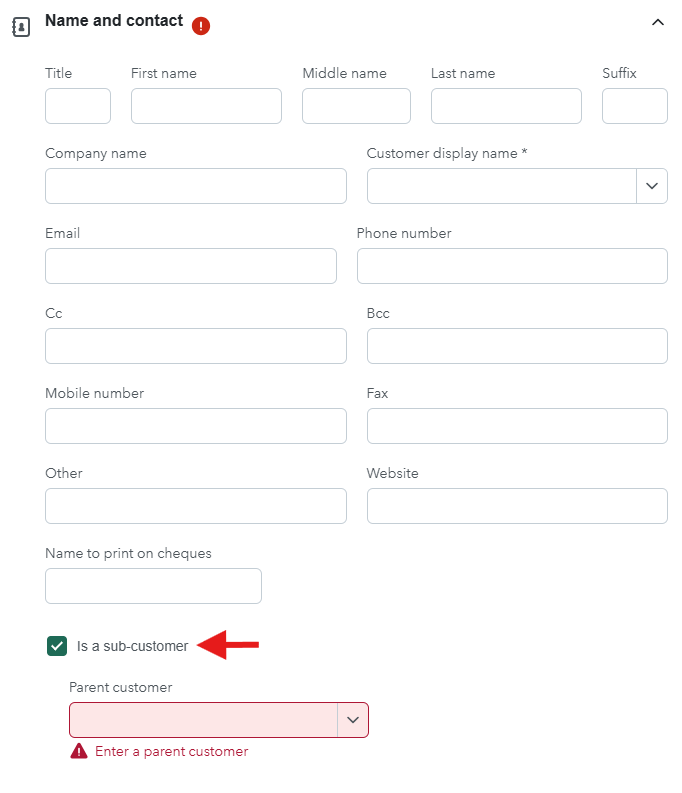
2. Create a Customer
 3. Upon creating a customer, check the "Is a Sub-Customer" box, and select the "Parent Customer" from the drop-down:
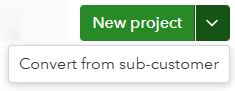
4. You can also convert a sub-customer into a project:
Need help?
Reach out to our Customer Support team:
- Call us toll-free at 1-833-712-5021
- Chat with us in our web and mobile apps