Important notes:
|
User permissions control what actions team members can perform in QuoteToMe.
- For a visual guide to each feature by permission level, see the User Permissions Matrix.
User Permission Levels
When creating or editing a user, choose one of the following permission levels:
- Tip: Click on any level to be taken to that section.
- Submit requisitions and receive orders. (If Requisitions are off: receive orders only.)
- Best for field staff who need to submit material requests and confirm deliveries.
- All Basic permissions, plus quoting and purchasing.
- Default level for most team members actively involved in procurement.
- All Standard permissions, plus invoice and inventory management. (Only appears when Invoicing or Inventory is enabled.)
- All Advanced permissions, plus full account management - users, company settings,
suppliers, and projects.
Basic
Basic is the most restricted permission level and is designed primarily for field staff. It allows users to receive deliveries and, if Requisitions are enabled, submit and manage their own material requests without giving access to purchasing or company administration.
Purchasing
- Receive purchase orders (POs) and confirm deliveries
Requisitions (if enabled)
- Create and edit their own requisitions
- Cancel their own requisitions
Projects
- View orders for projects they are assigned to
- Leave internal comments
Notifications
- Subscribe to their own project spend notifications
- Manage their own email notification preferences
Standard
Standard includes everything available in Basic, plus purchasing, quoting, and reporting capabilities. Administrators can enable or disable several optional permissions using the ⚙ gear icon beside the Standard permission level.
Purchasing
- Edit order names
- Complete orders
- Cancel orders and purchase orders
- Receive purchase orders
- Request quotes (Get Quotes) ⚙
- Create purchase orders and change orders ⚙
Expenses
- Submit expenses
Bills of Materials
- View and create Bills of Materials (BoM) ⚙
Suppliers
- View the company supplier list and supplier contacts
Reports
- Export:
- Purchase Orders (CSV)
- PO Items (CSV)
- Quote Items (CSV)
Projects
- Join or leave projects
- View all orders within assigned projects
- Leave internal comments
Notifications
- Subscribe to their own project spend notifications
- Manage their own email notification preferences
Optional Features (if enabled)
Expenses ⚙
- Create and edit their own expenses
- Cancel unapproved expenses
- View and export expenses
- Approve expenses when assigned as an Expense Approver
Inventory ⚙
- View inventory items
- Transfer inventory
Invoices
- View the invoice homepage
Requisitions
- Create and edit their own requisitions
- Cancel requisitions
- Create purchase orders or request quotes from approved requisitions
Accounting
- Download accounting PO export files
Advanced
Advanced includes everything in Standard and adds additional inventory and invoicing functionality. This permission level is only available if your company has Inventory or Invoicing enabled.
Includes everything in Standard, plus:
Inventory (enabled by default and can be turned off by an Administrator)
- Create inventory transfer orders ⚙
- Edit inventory items ⚙
Invoicing (enabled by default and can be turned off by an Administrator)
- Upload invoice documents
- Submit invoices for approval ⚙
- Approve invoices when assigned as an Invoice Approver
Administrator
Administrator provides unrestricted access to QuoteToMe, including company administration, user management, supplier management, and all purchasing, inventory, invoicing, and project functions.
Administrators are also the only users who can create or edit suppliers. This restriction was introduced in May 2026.
Includes everything available in Standard and Advanced, plus:
User Management
- Add, edit, deactivate, and reactivate users
- Assign user permission levels
- Configure Standard and Advanced sub-permissions
Suppliers
- Create, edit, and manage suppliers
- Create and edit supplier contacts
Company Settings
Manage company-wide settings, including:
- Company address and logo
- Purchase order terms and conditions
- AP contact and billing information
- Purchasing limits
- Delivery locations
- Cost codes
- Project join settings
Projects
- Create and archive projects
- Edit project details, including integrated project names
- Manage project cost codes
- Add or remove project team members
- Configure approval permissions for project users
Company-wide Visibility
- View all orders, invoices, and expenses across the company
- Edit invoices directly (added June 2026)
Project-Level Roles
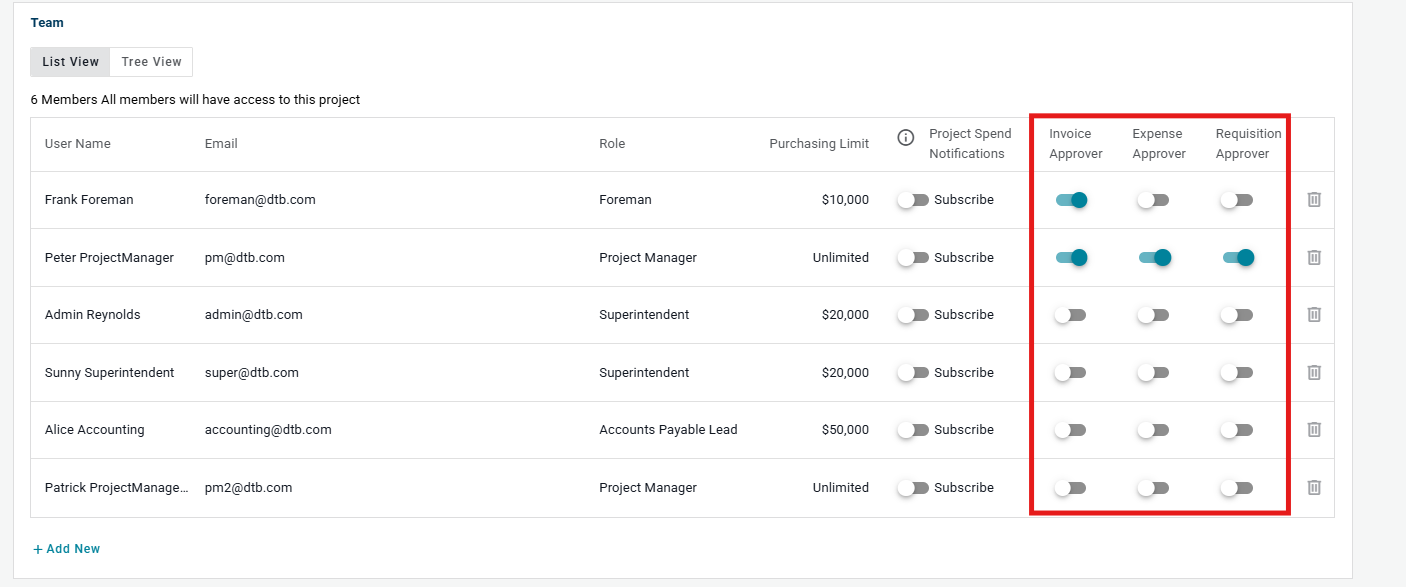
In addition to company permission levels, every user can be assigned project-specific roles that determine where they participate in approval workflows.
The following roles are configured per project from the Project Team section:
Invoice Approver
- Grants the ability to review and approve invoices submitted to the project.
Expense Approver
- Grants the ability to review and approve expenses within the project.
Requisition Approver
- Grants the ability to approve requisition requests before they are sent to a buyer.
Notes:
- Approver toggles are managed per project.
- A user’s toggles can differ between projects.
- Turning a toggle off removes that user’s approval for that specific project.
Buyer Role
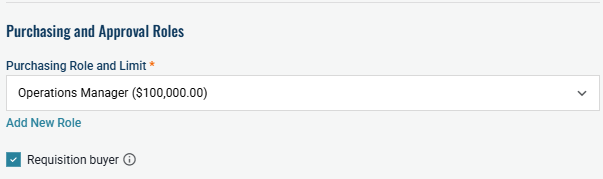
The Buyer role is part of the requisition process.
When the Buyer toggle is enabled for a user:
- Their name(s) appear in the Buyer dropdown on requisitions.
- They are responsible for purchasing approved requisitions.
Additional Changes
Project Membership
- Beginning in May 2026, companies can choose whether users are allowed to join projects themselves or whether only Administrators can add users to projects.
- There is no in-app request-to-join workflow regardless of which option is selected.
Purchase Order Approvals
- Purchase order approvers can now be reassigned even after an approval request has already been sent.
Parent & Child Companies
- For parent-child company structures, permission roles and purchasing limits are managed at the parent company level. Child companies inherit these settings and can view them, but cannot modify them.
See Also
Need help?
Reach out to our Customer Support team:
- Call us toll-free at 1-833-712-5021
- Chat with us in our web and mobile apps

